SMS and phone-call sign-in is being retired for your ITU account
Microsoft is retiring the option to use SMS and phone calls as your second step when you sign in to your ITU account and Microsoft 365. This applies to everyone - students and staff.
Written September 4, 2026 by Emma Capion Avnbøl
SMS and voice are among the least secure verification methods and relatively easy to abuse (e.g. SIM-swap and phishing), so Microsoft is moving everyone to passkeys and other phishing-resistant methods.
Key dates
- 1 September 2026: Passkeys become the default. If you currently use SMS or voice, you'll be prompted to set up a passkey when you sign in. SMS/voice still work during this period.
- 1 February 2027: SMS and voice are switched off completely. If they're your only method at that point, you'll have to set up another method before you can sign in.
Does this affect you?
If you already use Microsoft Authenticator, a passkey, Windows Hello, or a third-party authenticator app, you are covered - no action needed. If SMS or voice is your only sign-in method, add another method well before 1 February 2027, so you don't get locked out.
What to do
In order to change, you will need to go to go.itu.dk/mfasetup
Here you will see this:
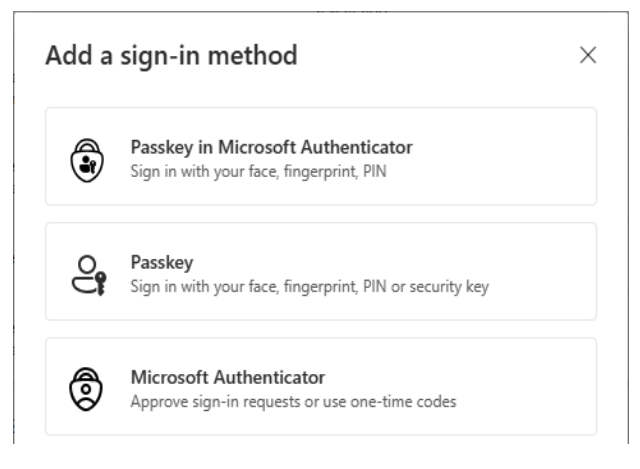
Sign in with your ITU account and choose Add sign-in method. Your options:
- Passkey in Microsoft Authenticator - turns this app into a passkey: Sign in with Face ID, fingerprint, or PIN instead of a number. Best default if you have the app.
- Passkey - same face/fingerprint/PIN sign-in, but you choose where it is stored:
- Built into your phone or laptop (Windows Hello, Face ID, Touch ID),
- In a third-party password manager (Apple iCloud Keychain, Google Password Manager, 1Password, Bitwarden…)
- On a physical security key.
- Microsoft Authenticator: Type the two-digit number from your screen into the app (number matching). Still works, not going away. Pick this to keep what you know.
Set it up now
- Go to go.itu.dk/mfasetup and choose Add sign-in method.
- Set up one of the options above.
- Sign out and back in to test - then delete SMS and voice from your list.
Learn more
New to passkeys? Go to this page: What are passkeys and why they matter.
For step-by-step help, see the MFA guide or Microsoft's Create and save a passkey.
Need help?
Contact Helpdesk at it@itu.dk if you have any questions or would like help getting started. Physical FIDO security keys can also be ordered here.